App password and terminal locking
Change the password that unlocks tablets, and choose when tablets lock again.
Owners
The app password unlocks a tablet for your venue. Staff then sign in with their own PIN. See Unlock a tablet.
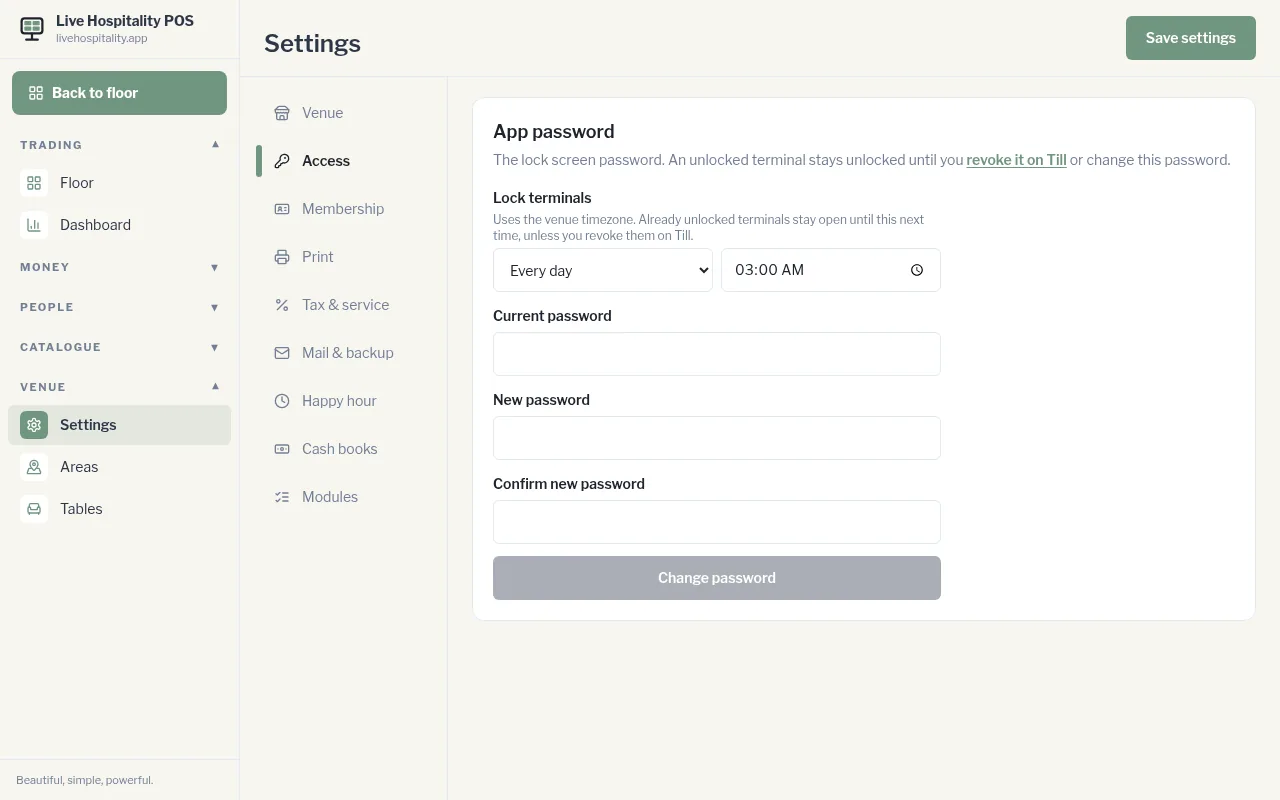
Change the password
- Go to Settings › Access.
- Enter the Current password, then the New password twice.
- Tap Change password.
Choose when tablets lock
Lock terminals sets when unlocked tablets have to enter the app password again: Every day or Once a week, at a time you choose.
- It uses your venue's timezone.
- Tablets that are already unlocked stay open until the next lock time, unless you revoke them on the Till screen.
Tap Save settings when you're done.