Open a table and start an order
Tap a table, add items, and get to know the order screen.
Bar and floor staff
Start the order
- Sign in with your PIN (and make sure you're clocked in).
- On the floor, tap the table. A free table is sage green.
- The order screen opens with Tap a drink to start this order.
- Pick a category on the left, then tap a product to add it.
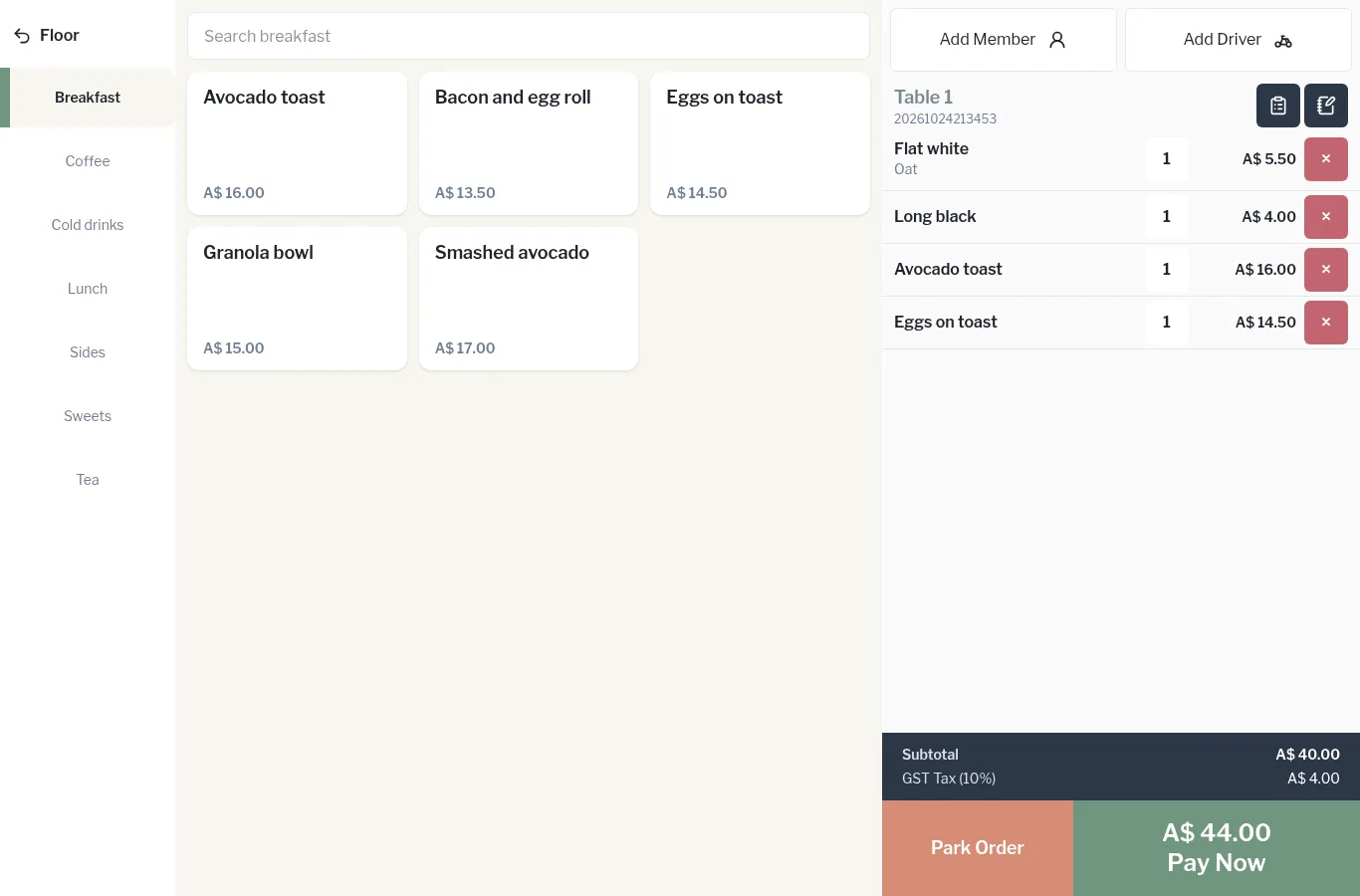
The order screen at a glance
- Left: Floor (back to the floor plan) and your menu categories.
- Middle: products in the chosen category, with a Search box at the top. Products marked Options will ask you to choose modifiers.
- Right: Add Member, Add Driver, the table name and order number, two small icons for Recipes and Order notes, then the lines on the order.
- Bottom right: Subtotal, tax (for example GST Tax (10%)) and any service charge, then Park Order and Pay Now.
Tables with an open order
Once a table has an order, its tile on the floor changes colour and shows the running total. Tap it any time to add more.