Change a quantity or override a price
Tap a line to add or take one away, or set a new price with a reason.
Bar and floor staff
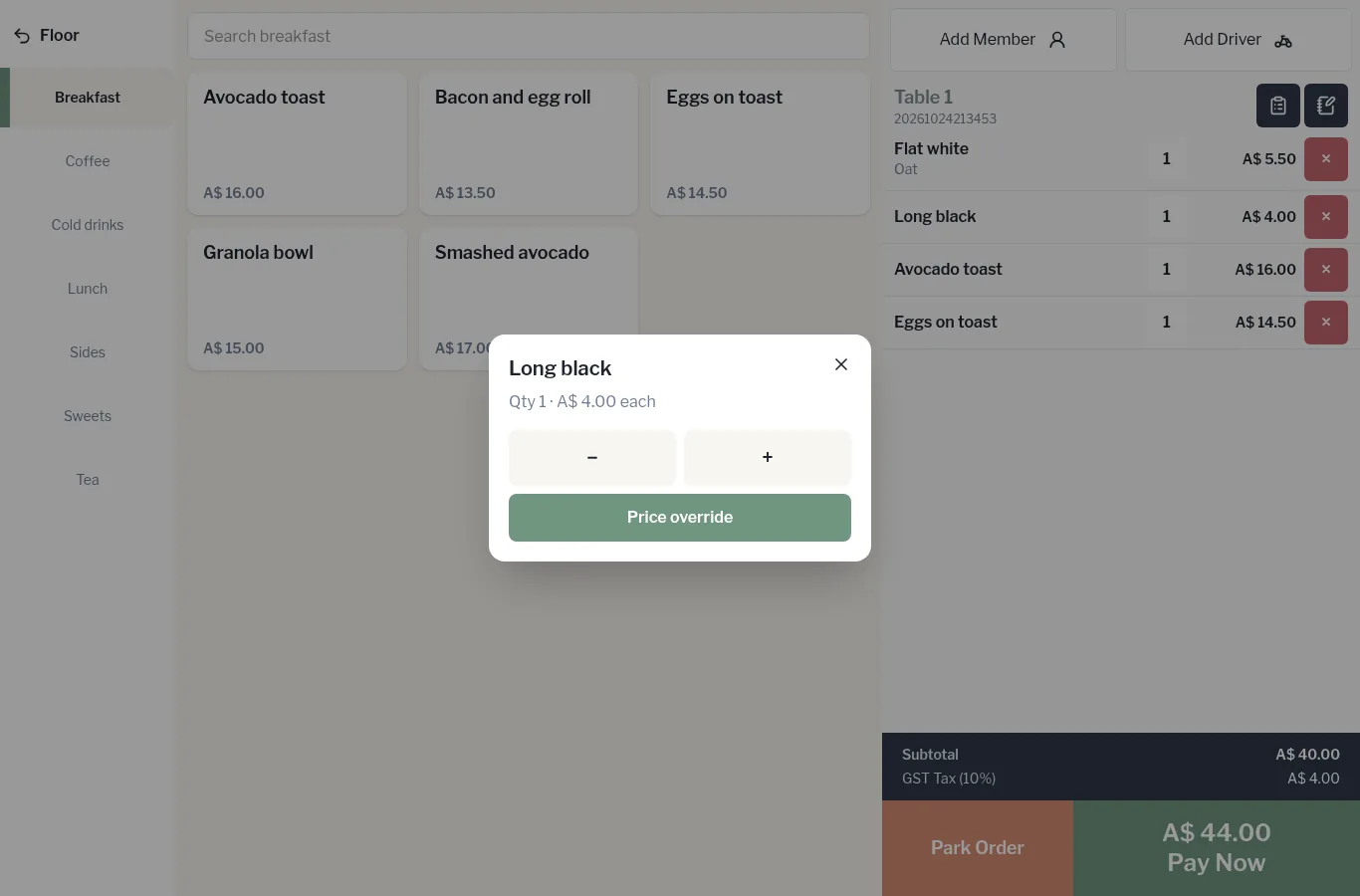
Change the quantity
- Tap the item line on the order.
- Use – and + to change the quantity.
- Tap the × at the top to close.
Override the price
- Tap the item line, then Price override.
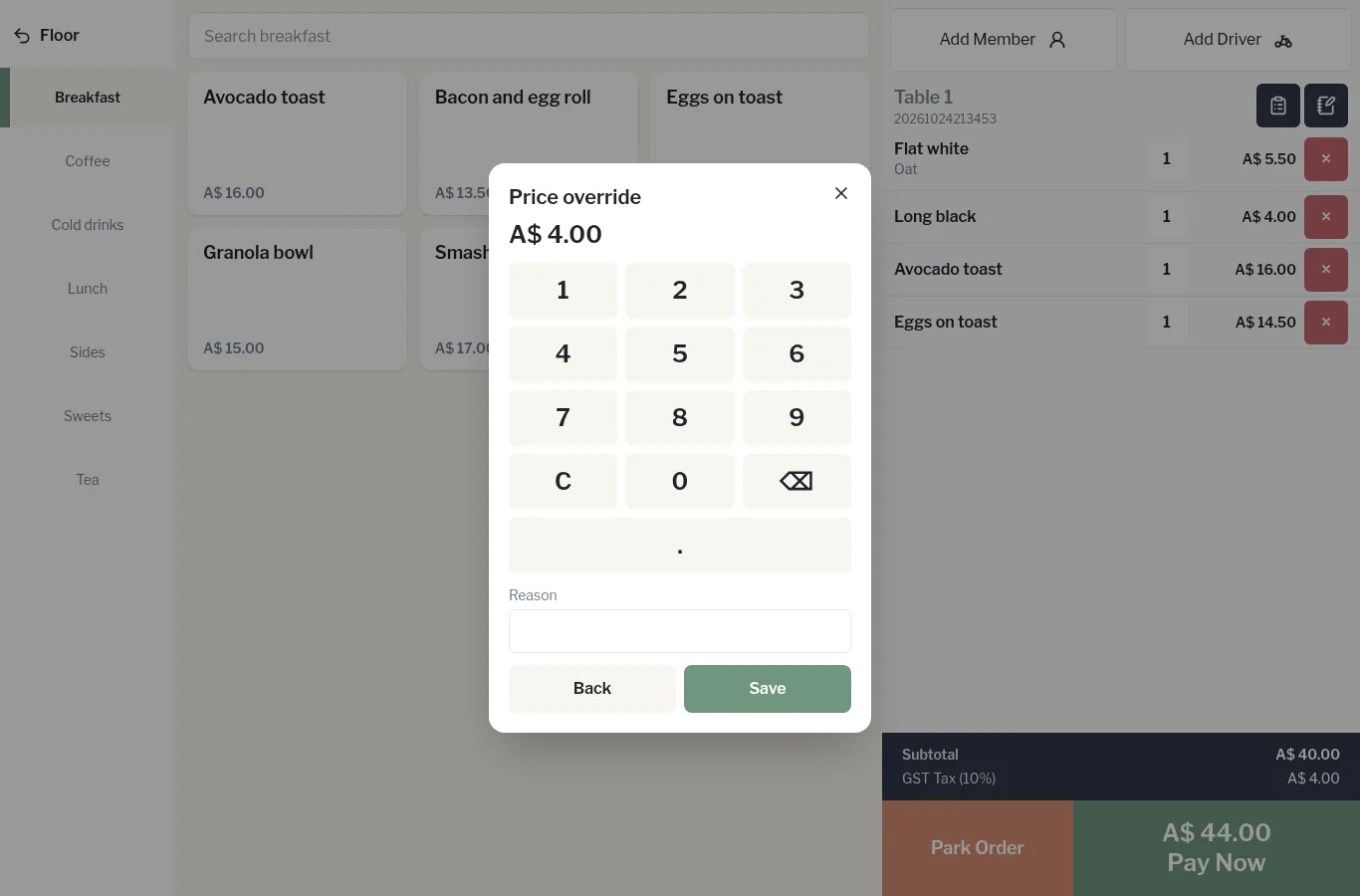
- Key in the new price on the keypad (C clears it).
- Type a Reason, for example “Staff drink” or “Wrong milk, remade”.
- Tap Save.