Receipts and printer
Choose what prints on receipts, and connect this tablet to its printer.
Owners and managers
Go to Settings › Print.
Receipts
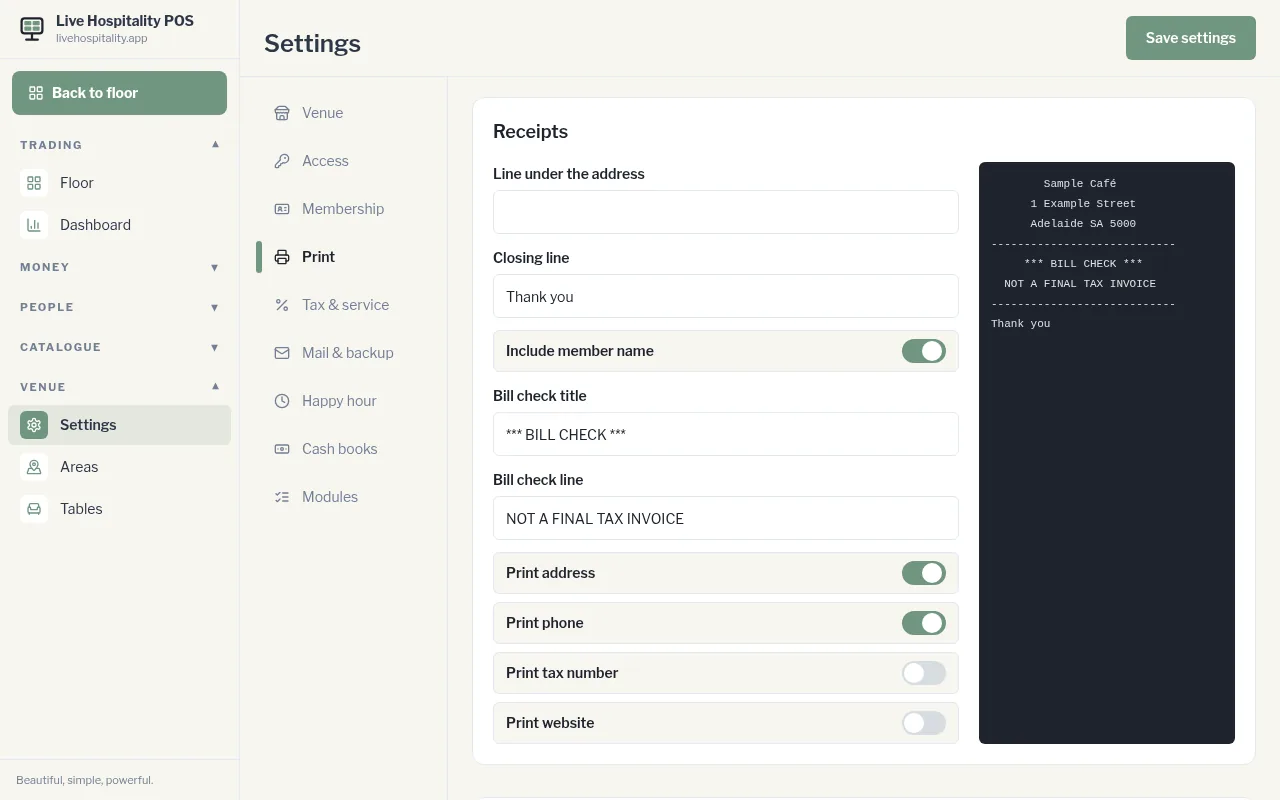
The preview on the right updates as you type.
- Line under the address: for example a tagline
- Closing line: for example "Thank you"
- Include member name
- Bill check title and Bill check line: what prints at the top of a bill before payment, for example "NOT A FINAL TAX INVOICE"
- Print address, Print phone, Print tax number and Print website
Printer
Printer settings are saved for this tablet only. Set them up on each tablet that prints.
- Choose the Connection: - Bluetooth: press Connect this tablet, then choose the printer. - USB: plug the printer into this tablet, then press Connect this tablet. - Already paired: for a printer already paired in the tablet's settings, or on a serial cable (set the Baud rate). - Epson on the Wi-Fi: enter the Printer address. The tablet must be on the same Wi-Fi. Leave the Port at 80 unless the printer says otherwise. - Built-in printer: for a Sunmi or iMin tablet, opened in that tablet's own browser. - Choose a printer: the tablet asks which printer to use for each receipt. - RawBT: each receipt opens the RawBT app.
- Choose the Paper width: 58mm or 80mm.
- Turn on Open the cash drawer if a drawer is plugged into the printer. The drawer opens with a paid receipt.
- Leave Cut after each receipt on, unless the printer has no cutter.
- Tap Print a test slip.
- Tap Save settings.